
Submit Your First Job in 5 Minutes#
Now that the environment is set up, it is time to run your first computation on the cluster.
In this guide, we will submit a job that runs a Python script to print Hello from <hostname>!.
Note
On a cluster, programs do not print directly to your terminal. All standard output (stdout) is redirected to a log file for you to review later.
Step-by-Step Instructions#
SSH to a Vulcan login node Ensure you are logged into the cluster, following this guide: Log In to a Cluster.
Clone the example repository Download the companion examples from GitHub to your home (
~) directory and run:cd amii-doc-examples/src/first-job
Submit the job Run the following command to submit your script to
Vulcan:sbatch run-first-job.shIf successful, the system will return a unique job ID:
Submitted batch job 2700931
Understanding the Workflow#
Your job is now placed in the default partition (queue). It will wait there until the requested resources (CPU, memory, etc.) become available, at which point it will execute on Vulcan.
The file run-first-job.sh is a Slurm job/batch script. While it looks like a standard shell script, it contains special instructions (prefixed with #SBATCH) that tell the cluster how many resources you need.
Tip
Take a moment to open run-first-job.sh with a text editor (like nano or vim). Look at the comments to see how the Python interpreter is invoked and how the resources are requested.
Check Your Results#
Once the job finishes, output files are created in your current directory.
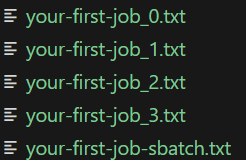
We will dive deeper into customizing these scripts and requesting specific resources in the next chapter.