
Launching Parallel Job Steps on Clusters#
Note
This section contains multiple example job scripts.
You can download the companion examples from GitHub to your home (~) directory and run:
git clone https://github.com/Amii-Engineering/amii-doc-examples.git
cd amii-doc-examples/src/srun
srun#
While sbatch is used to submit jobs to a queue for later execution, srun is the primary tool for launching and managing parallel tasks on a cluster. The complete srun manual can be found here.
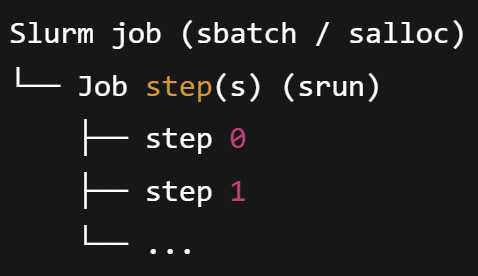
The core concept introduced by srun is the Job Step. In Slurm, a job step runs parallel tasks on reserved nodes within an existing job resource allocation.
A Job reserves resources from the cluster (Nodes, CPUs, GPUs, Memory, Time).
A Job Step (invoked via
srun) puts those allocated resources to work.
The figure below demonstrates the relationship between a job and its constituent job steps.
Key Characteristics of Job Steps#
Direct Invocation Every time you call
srun, you initiate a new job step.Resource Subsetting A step can utilize all resources in your job or just a small portion, but it cannot exceed the total job allocation. This allows for complex workflows where you might run one step on nodes 1–5 and a simultaneous step on nodes 6–10.
Important
The job allocation must also account for the resources used by the job script itself. You can verify this behavior by running the following command:
sbatch test-script-memory-usage.shThe script’s overhead plus the task running on the same node exceeds the limit and the job will fail with an Out of Memory (OOM) error. Thus, you should avoid running heavy programs in the job script.
Independent Tracking Slurm tracks each step individually. When using monitoring tools like
sacct, you will see the main Job ID followed by a step suffix (e.g.,12345.0,12345.batch).
Common Types of Steps#
When reviewing job history with sacct (to be covered), you will encounter steps generated both manually and automatically:
Step Suffix |
Description |
|---|---|
|
The execution of the job script itself (created by |
|
A special step for administrative and monitoring purposes (e.g., job cleanup). |
|
Standard job steps created every time you call |
srun Options#
srun and sbatch share most resource-requesting options. However, their execution models differ: sbatch runs your job script once on the first allocated node, while srun launches multiple instances (tasks) in parallel across the allocation.
Option |
Description |
|---|---|
|
Number of physical nodes to use for this step. |
|
Total number of parallel tasks (processes) to launch. |
|
Maximum number of tasks to be invoked on each allocated node. |
|
CPU cores allocated to each task (useful for multithreading). |
|
Total memory requested per node. |
|
Memory requested per allocated CPU. |
|
Total GPUs requested for the specific job step. |
|
Maximum runtime limit ( |
Tip
Inside a job script, you rarely need to repeat options in srun. It automatically inherits the environment from the #SBATCH directives. Use srun options only when you need to override the job-level defaults for a specific step.
Common srun Pitfalls#
Resource Sharing on the Same Node Using per-node options like
--memwithsruncan be confusing, as resources are allocated differently depending on how tasks are distributed across nodes. Because--memis enforced on a per-node basis, it can create inconsistencies in the actual resources available to each task.For example, consider the command
srun -n 2 --mem=500M my_script.sh:Same Node: If both tasks run on the same node, they share a single 500M memory pool.
Different Nodes: If the tasks are launched on different nodes, Slurm reserves 500M on each node, giving each task exclusive access to 500M.
This behavior can make it difficult to determine the exact resource allocation for each task and may lead to unexpected failures. You can test this behavior using:
sbatch test-mem.shHow to modify the script to avoid OOM?
To ensure each task receives a guaranteed amount of memory regardless of node distribution, use the
--mem-per-cpuor--mem-per-gpuflags instead of--mem.Resource Contention in Parallel Steps: When executing multiple steps simultaneously (using the bash background operator
&), you must ensure the sum of resources requested by all background steps fits within the total job allocation. If the combined request exceeds the allocation, subsequentsruncalls will either block (wait for available resources) or fail.Hands-on Exercises:
Observe Resource Blocking Run the memory contention script:
sbatch test-parallel-step-mem-contention.shExamine the output timestamps. You will notice the steps ran sequentially because the job’s memory limit prevented them from starting at the same time.
Expand the Resource “Envelope” Open the script and change the allocation from
#SBATCH --mem=500Mto#SBATCH --mem=1G. Re-submit the job. Note how the timestamps change with a larger memory “envelope,” Slurm can now launch the steps in parallel.CPU and GPU Binding The same logic applies to CPUs and GPUs. Run the following scripts:
sbatch test-cpu-binding.sh
sbatch test-parallel-step-gpu-contention.sh
Challenge: Can you identify which specific resource is being over-subscribed in these scripts? Try to modify the
srunoptions so that both steps execute simultaneously.
Shell Redirection and Pipes: Standard piping (e.g.,
cat data.txt | srun ./app) is often problematic. By default, only Task 0 receives the input. For parallel input, use the--inputflag or handle file I/O within your application code.The “Task Multiplier” Effect: Remember that
srunlaunches N copies of your executable. If your code is not designed for MPI or parallel coordination (e.g., a standard Python script), runningsrun -n 40 python script.pywill result in 40 independent processes likely overwriting each other’s files.Submitting ``srun`` within a Loop: Using a bash loop to call
srunthousands of times creates massive overhead for the Slurm controller (slurmctld) and thus slows down the entire cluster.