Moving Source Code and Data#
We should write and develop our code and work with smaller datasets on our local machines. HPC clusters are the “big guns” for holding our large datasets and running our code at scale on high-performance hardware and accelerators.
Note
~ (home) directory is your primary workspace used for small, temporary experimental scripts.~/projects directory is used for long-term research projects.$SCRATCH is an additional workspace offering additional but temporary storage.Moving Source Code#
There are several ways to transfer your work to the cluster. For source code, we recommend using GitHub.
GitHub (Recommended)#
The most robust method for managing research projects is using GitHub. GitHub is a cloud-based platform for version control, allowing you to store, manage, and track code changes using Git.
If you are new to version control, we highly recommend familiarizing yourself with Git before proceeding.
See our Git & GitHub crash course and GitHub’s own interactive learning modules to get up to speed.
The general idea is to create a repository on GitHub, push your code to it, then pull the code changes on the cluster.
This methodology ensures your code is backed up and you’re operating on the latest version of your code.
Once your project is hosted on GitHub, use one of the two methods below to clone it onto the cluster.
Method 1: Download over SSH (Preferred)
SSH is the most secure and convenient method for frequent updates, as it uses key-based authentication instead of passwords.
Generate a new SSH key pair on the cluster:
Run the following command on
Vulcan:ssh-keygen -t ed25519 -C "your_email@example.com"
Important
This is not the same key you use to log into the cluster. Do not reuse your login keys for GitHub. Generating unique keys for different services is a security best practice.
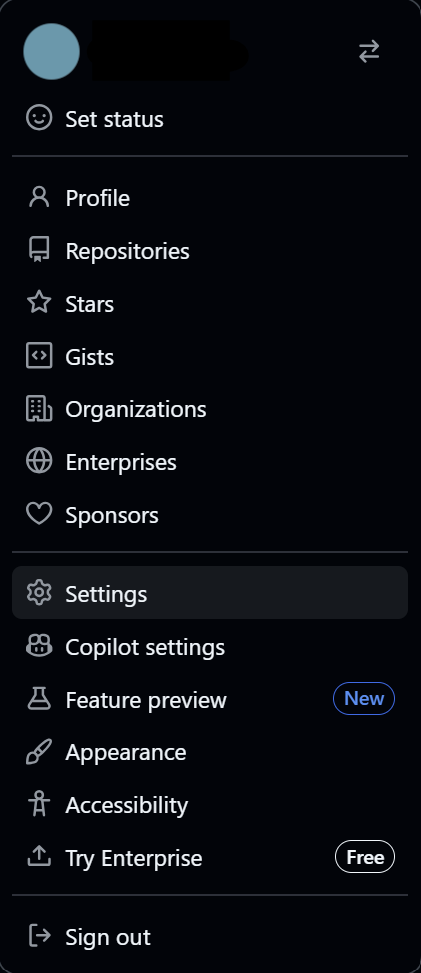
Access GitHub Settings: Sign in to GitHub, click your profile picture in the upper-right corner, and select Settings.
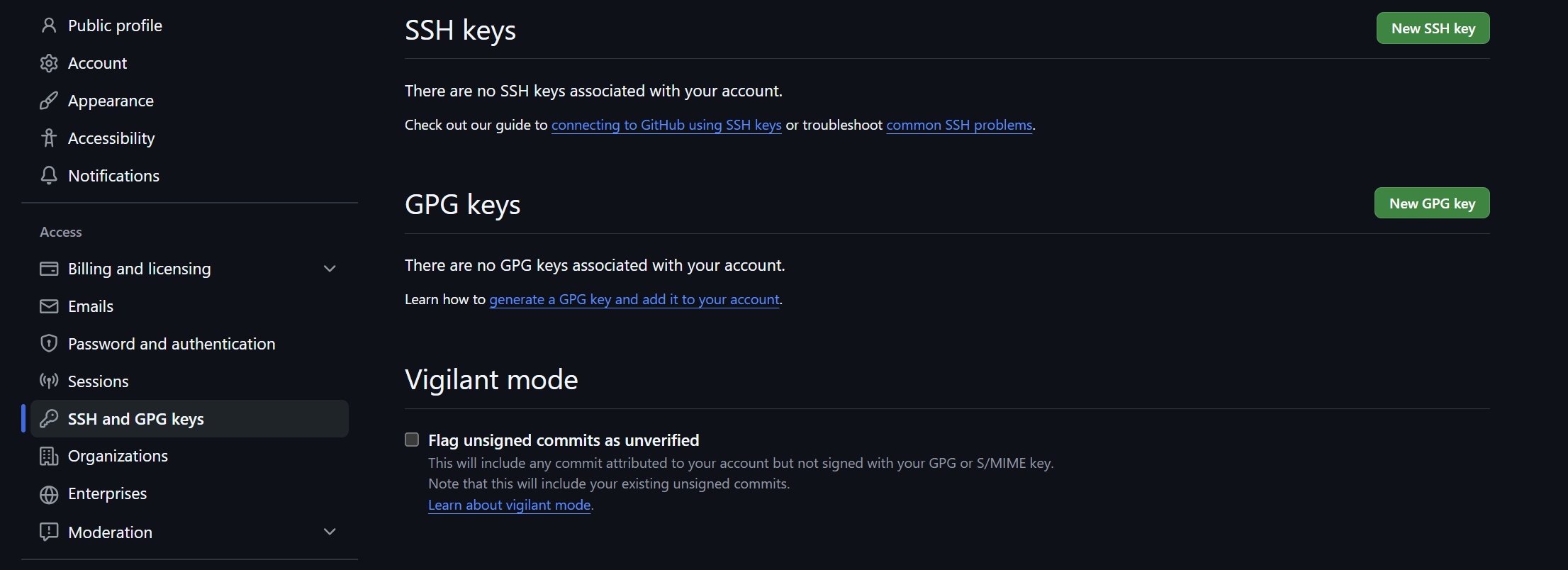
Add the SSH Key: In the left-hand sidebar, click SSH and GPG keys, then click the New SSH key button.
Copy your Public Key: Open your public key file (ending in
.pub) and copy the entire string into the “Key” box on GitHub. Give it a descriptive “Title” (e.g., Vulcan Cluster Key).To display your public key, run:
cat ~/.ssh/id_ed25519.pub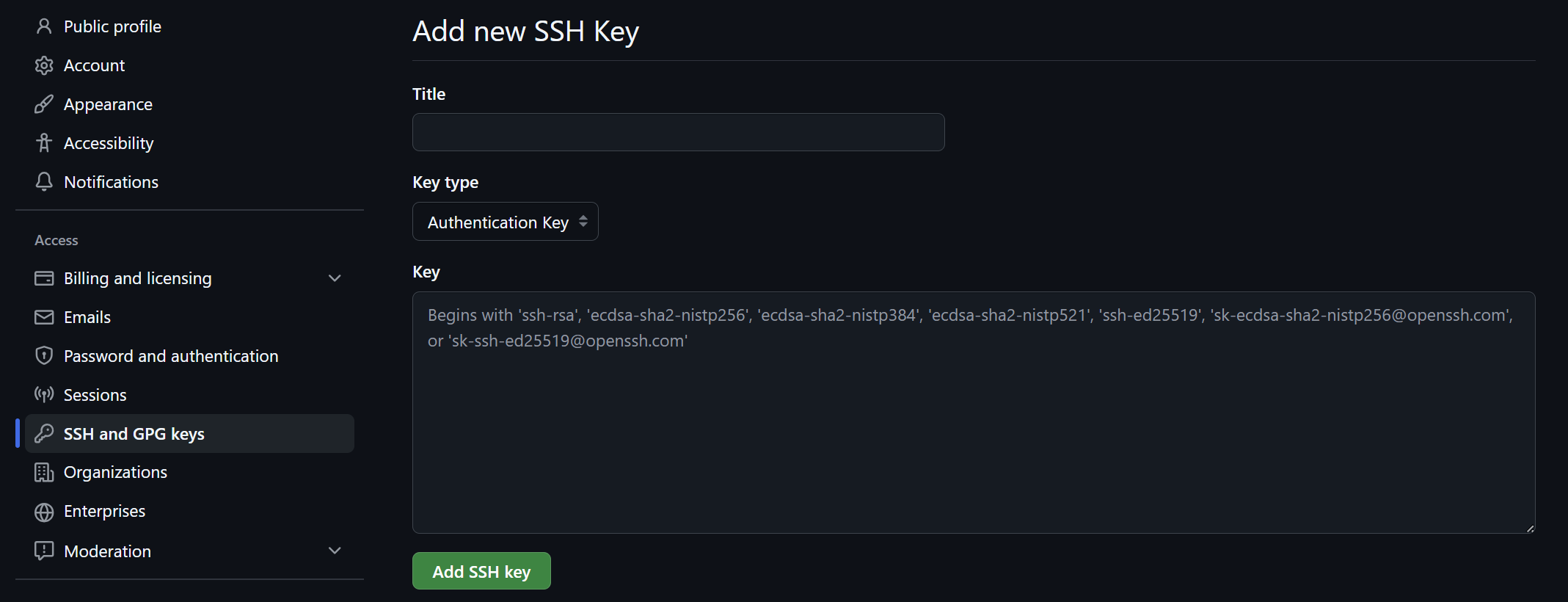
Important
NEVER share or copy your private key (
id_ed25519). Only copy the public key (id_ed25519.pub).Clone the Repository: Navigate to your project page on GitHub. Click the <> Code button, select the SSH tab, and copy the URL provided.
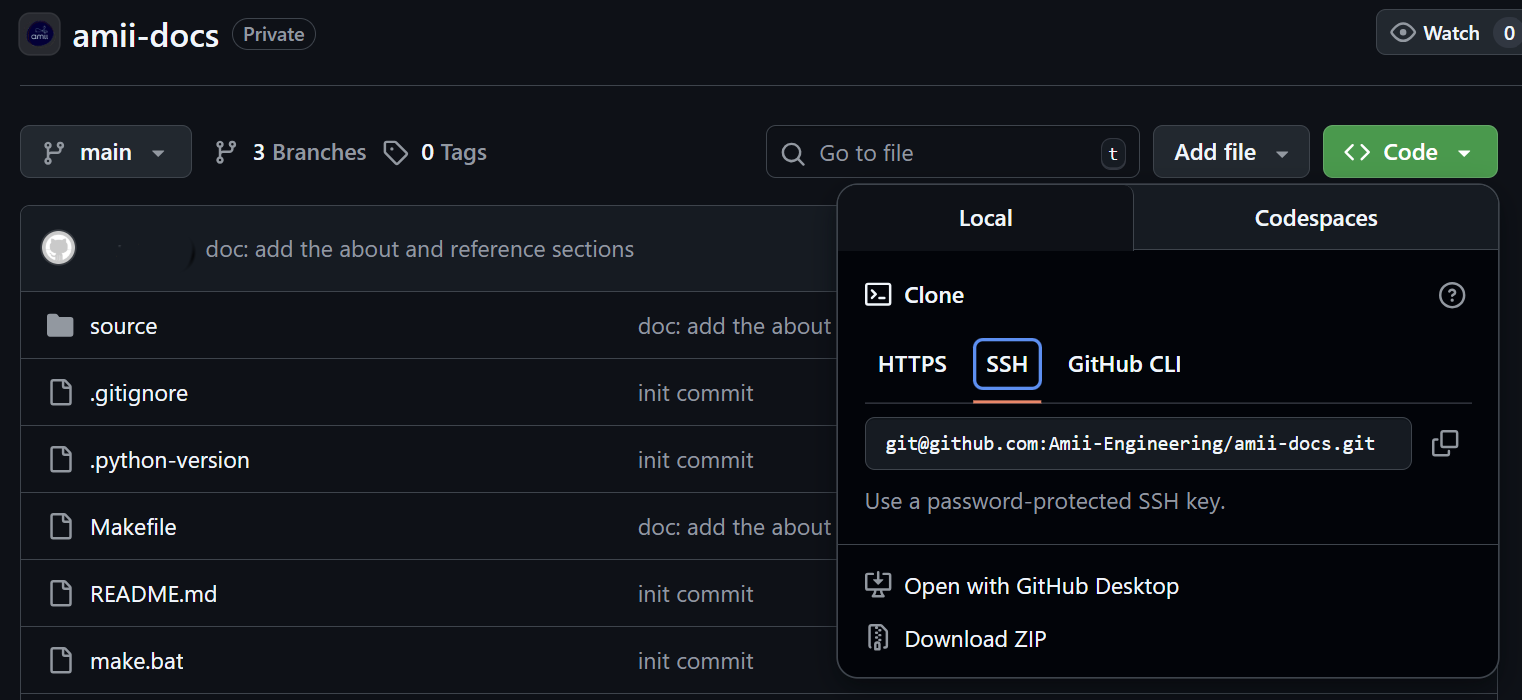
Execute on the Cluster: On the cluster login node, run:
git clone <paste-ssh-url-here>
Method 2: Download over HTTPS
This method is useful if you cannot use SSH. It requires a Personal Access Token (PAT).
Generate a Token: In GitHub Settings, scroll to the bottom of the left sidebar and click Developer settings. Navigate to Personal access tokens -> Tokens (classic).
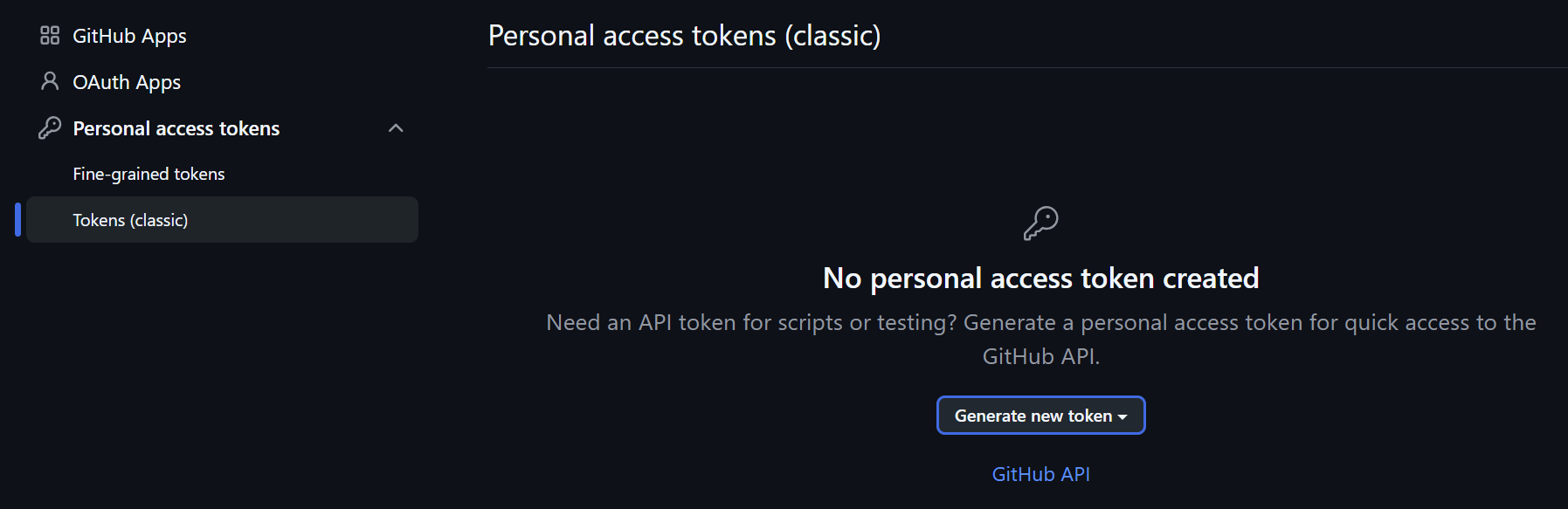
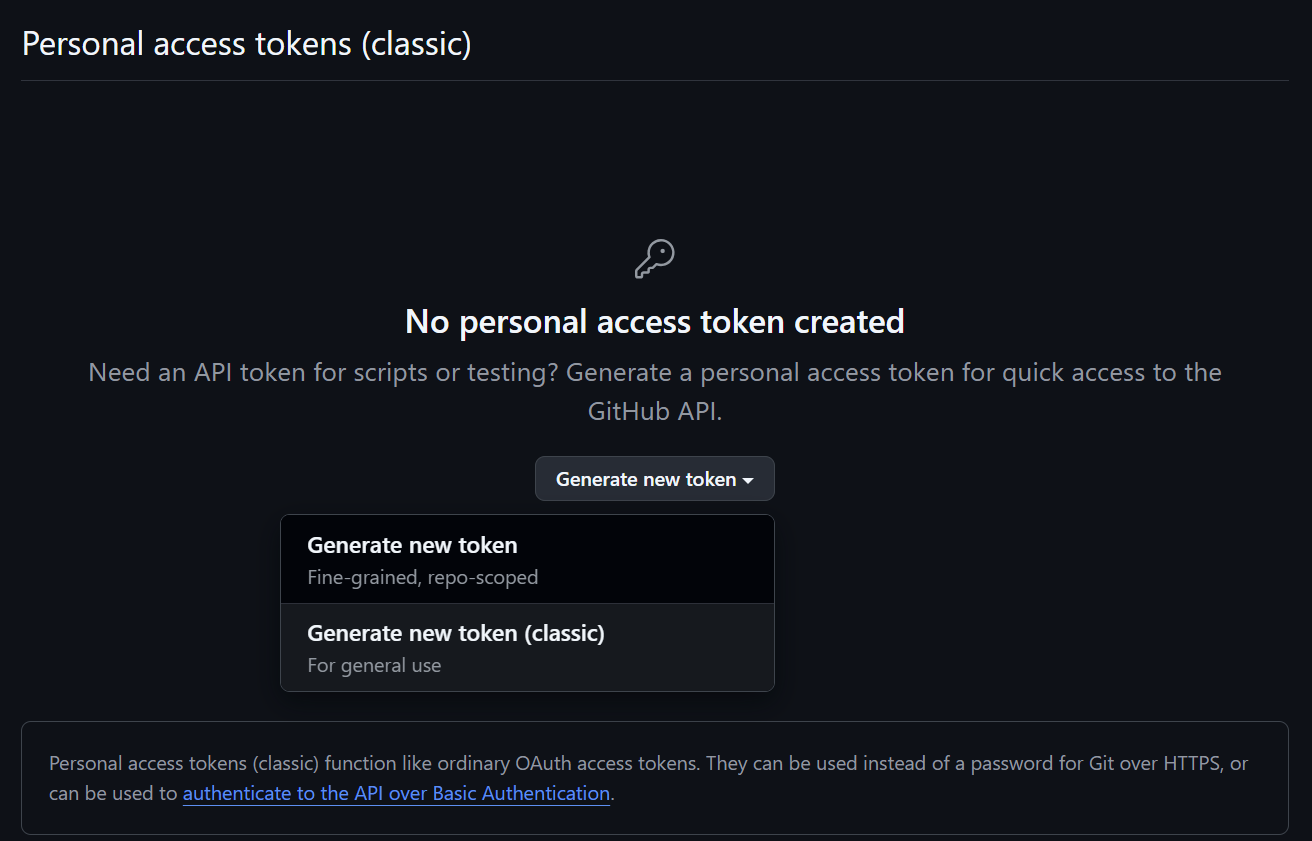
Configure Token Permissions: Click Generate new token -> Generate new token (classic).
Select Scopes: Give the token a descriptive name in the Note field and select the repo scope.
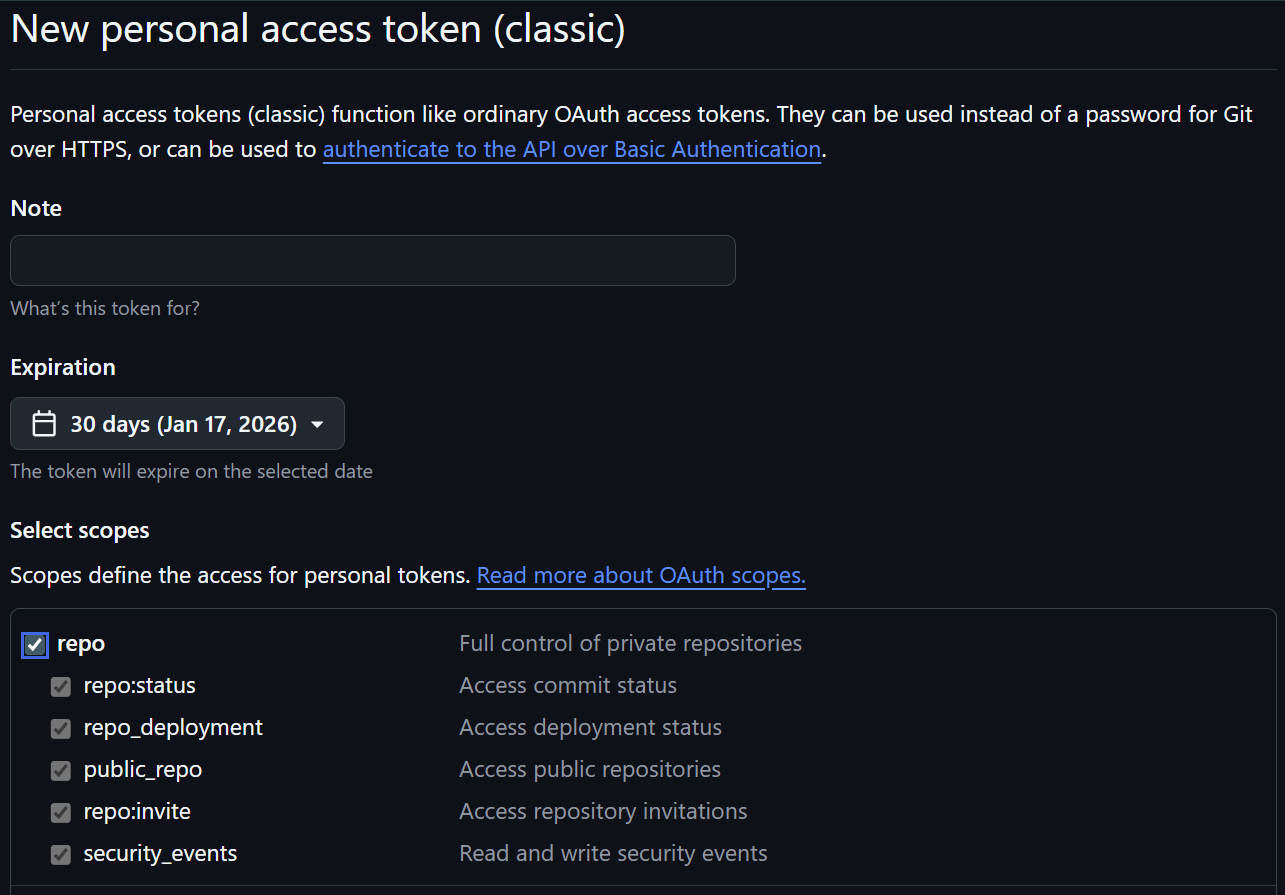
Save Your Token: Copy the generated token immediately. You will not be able to see it again once you leave the page.
Clone the Repository: On your GitHub project page, click <> Code, select HTTPS, and copy the URL.
Execute on the Cluster: Run the following on the login node:
git clone <paste-https-url-here>
Authentication: When prompted, enter your GitHub username. When prompted for a password, paste your Personal Access Token instead of your GitHub password.
SCP (Secure Copy)#
For one-off scripts, you can simply use the scp command to copy files directly from your local machine to the cluster.
From your local terminal, run:
scp -r /path/to/local/folder <your_username>@vulcan:~/<destination_folder>
Note
This method can be very slow if your project contains thousands of small files. In those cases, using Github or archiving the folder into a .tar.gz file before transferring is highly recommended.
Moving Data#
AI/ML/RL workloads consume a lot of data. Let’s get your data on to the cluster so your models can access it.
There’s a couple options: scp / rsync or Globus.
For this documentation we’ll assume you’re transferring data on your local machine to Vulcan.
Server:
vulcan.alliancecan.caPath:
~/projects/<project_name>/data
Using SCP (Secure Copy)#
scp is a straightforward way to copy files over an SSH connection.
scp /path/to/local/file.txt <username>@vulcan.alliancecan.ca:~/projects/<project_name>/data
Include the -r flag to copy directories recursively.
Using Rsync (Remote Sync)#
rsync is the recommended tool for large transfers with many files.
It can also resume interrupted transfers, preserve file permissions, and compress data during the journey, making it faster and more robust than scp for large datasets.
Furthermore, rsync checks for files that have already been transferred and only transfers the difference.
To sync a directory:
rsync -avz /path/to/local/folder/ <username>@vulcan.alliancecan.ca:~/projects/<project_name>/data
Note
Adding a trailing slash to the source folder copies the contents of the folder rather than the folder itself.
If you’re copying over compressed files (.tar.gz, .zip, etc), remove the -z flag since the source is already compressed.
Handling Many Small Files#
If you have thousands of small files (like a dataset of small images), transferring them individually is extremely slow due to the overhead of opening and closing connections for each file. It is much more efficient to bundle & compress them first.
Compress locally & transfer:
tar -czvf data_archive.tar.gz /path/to/local/folder
rsync -avP data_archive.tar.gz <username>@vulcan.alliancecan.ca:~/projects/<project_name>/data
Uncompress on the cluster:
cd ~/projects/<project_name>/data && tar -xzvf data_archive.tar.gz
Using Globus#
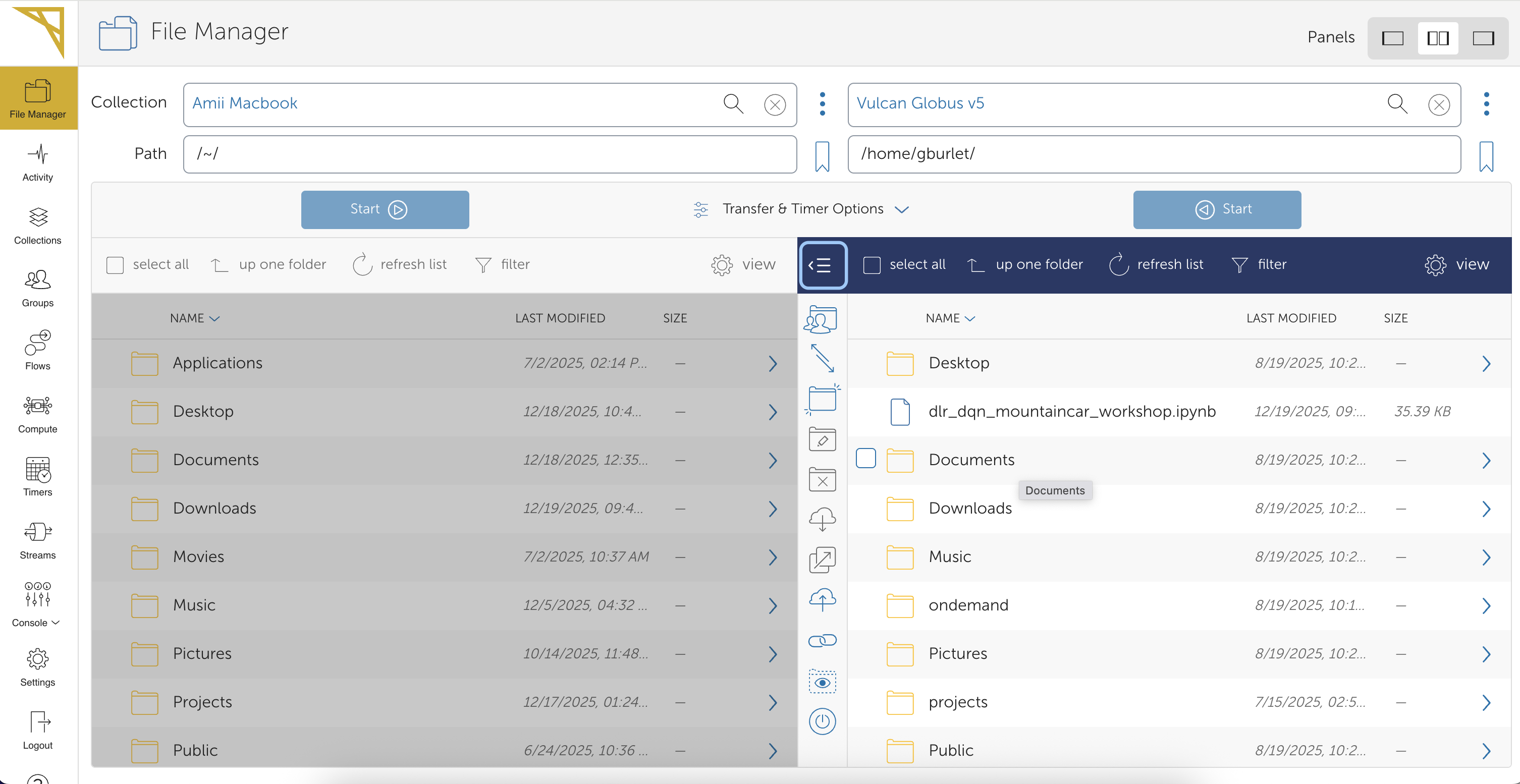
Globus is a service for transferring data from your personal machine to a cluster or between clusters designed with researchers in mind. There is a web interface, a command-line tool, and a desktop application for transferring local files to a cluster. You can also share files with other researchers using Globus.
If you already have a CCDB account on an Alliance cluster, you already have a built-in license to use Globus.
Here are excellent instructions for accessing Globus and transferring files to a cluster.
Below is a sneak peek of the Globus file transfer interface: