
Monitoring and Managing Jobs#
Besides sbatch and srun, Slurm provides a set of commands to monitor and manage your submitted jobs.
squeue#
The squeue command is used to view the status of jobs currently managed by Slurm. It provides a real-time snapshot of:
Which jobs are currently running.
Which jobs are waiting in the queue (pending).
Why a specific job might be delayed (reason codes).
squeue Options#
Option |
Description |
Example |
|---|---|---|
|
View jobs for a specific user. |
|
|
Inspect a specific job ID. |
|
|
Filter by state (e.g., RUNNING, PENDING). |
|
|
Report more of the available information for the selected jobs or job steps. |
|
Note
If no user is specified, jobs from all users will be listed. On Vulcan, you can use the alias sq to quickly list your own jobs.
Example Output:
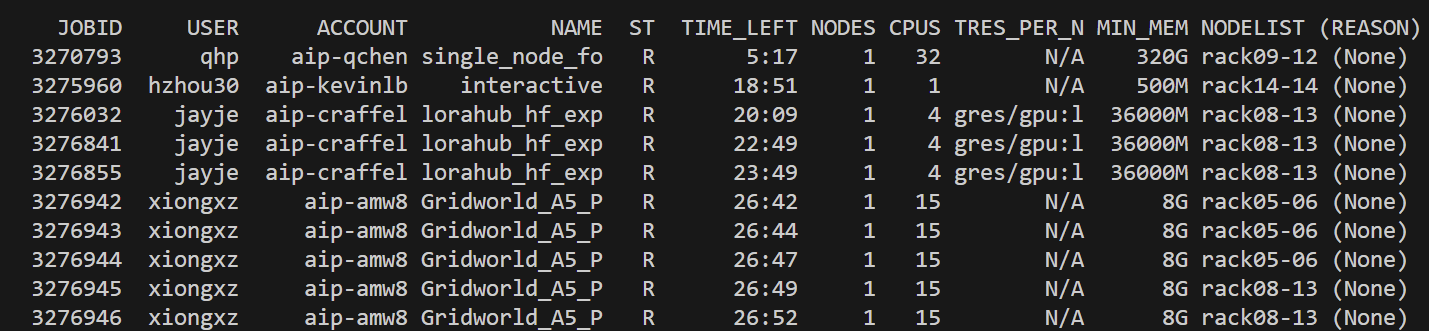
Important squeue Output Columns#
- ST: Shows the current lifecycle phase of your job:
R (Running): The job is currently executing on compute nodes.
PD (Pending): The job is waiting for resources (nodes, CPUs, or GPUs).
CG (Completing): The job is finishing up and releasing resources.
- (REASON): Explains why a job is pending:
(None): The job is running.
Priority: Higher priority jobs are waiting for the same partition.
Resources: Waiting for requested nodes/CPUs to become available.
Dependency: Waiting for a prerequisite job to finish.
BeginTime: The scheduled start time has not yet been reached.
Full documentation: squeue manual
scancel#
If sbatch is the “submit” button and squeue is the “monitor,” then scancel is your “stop” or “undo” button. It is used to terminate jobs or send signals to specific job steps.
For Pending Jobs: Removes the job from the queue immediately.
For Running Jobs: Sends a signal (default is
SIGKILL) to the job processes on the compute nodes.
scancel Options#
Option |
Description |
Example |
|---|---|---|
|
Restrict scancel to jobs in a specific state. |
|
|
Send a specific signal (name or number). |
|
In most cases, simply running scancel <job_id> is sufficient to kill a job.
Full documentation: scancel manual
sacct#
The sacct command displays accounting data for all jobs and job steps that have been submitted to Slurm (including finished jobs). It is useful for:
Finding exit codes and reasons for job failure.
Checking actual resource usage to tune future requests.
sacct Options#
Option |
Description |
Example |
|---|---|---|
|
Display info about specific job IDs or steps. |
|
|
Display jobs matching specific names. |
|
|
Select jobs active after a specific time. |
|
|
Select jobs active before a specific time. |
|
|
Customize output columns (e.g., |
|
Example Output:

Important sacct Output Columns#
CPUTime: Total CPU time used (Elapsed time × CPU count).
Elapsed: The actual wall-clock time the job ran.
MaxRSS: The maximum resident set size (memory) used by any task in the job.
ExitCode: The exit status. The number after the colon indicates the signal that terminated the job.
- State:
CA (CANCELLED): Job was manually cancelled.
CD (COMPLETED): Finished successfully (exit code 0).
F (FAILED): Terminated with a non-zero exit code.
OOM (OUT_OF_MEMORY): Job was killed for exceeding memory limits.
TO (TIMEOUT): Job reached its allocated time limit.
Tip
Pay close attention to MaxRSS. Use this value to adjust your future memory requests (--mem) to ensure your jobs have enough resources without wasting system capacity.
Full documentation: sacct manual